The transparent-background PNG mistake that breaks every Cricut upload (and the 90-second fix)
Your PNG looks perfect until you upload it to Design Space and the background turns into a white square. Here's why it happens and the actual fix that works.
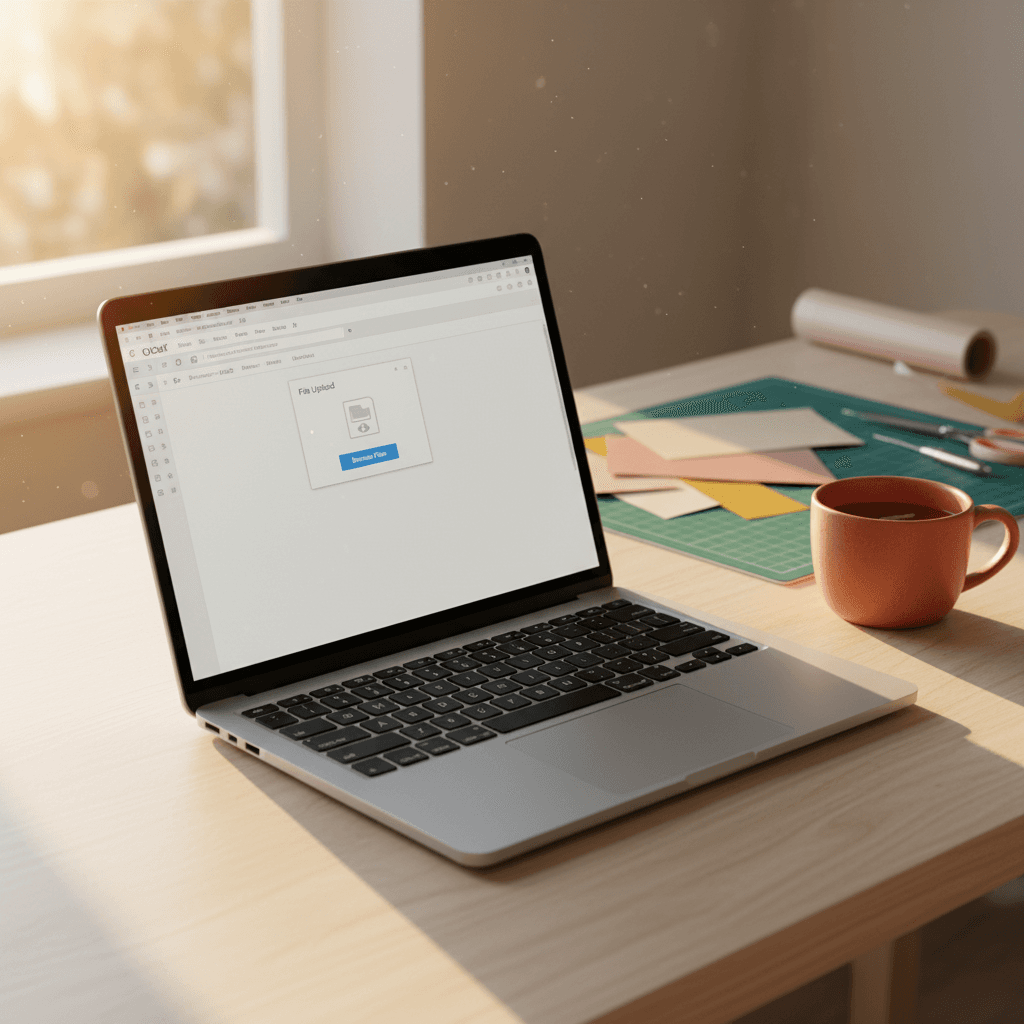
I spent twenty minutes last week trying to upload a cute little September calendar PNG I found, and Design Space kept giving me a white rectangle where the transparent parts should've been. The file preview looked fine. The designer swore it was transparent. But Cricut saw a solid white block. Turns out most PNGs that claim to be transparent aren't actually saved right, and Design Space is extremely picky about it.
Why your 'transparent' PNG shows up with a white background in Design Space
Design Space doesn't convert transparency the way your phone's photo app does. It reads the actual alpha channel data in the file. If the designer flattened the image before export, or saved it as RGB instead of RGBA, or accidentally left a white layer underneath, you get a white square. The thumbnail might look fine because most preview apps fake transparency with a checkerboard pattern. Cricut doesn't fake anything.
You can't fix this inside Design Space. The upload is the upload. You need to actually convert the PNG to SVG with real transparency before you bring it in, or re-save the PNG correctly if you have access to the original file.
The free way to convert PNG to SVG with a real transparent background
I use a site called Convertio (convertio.co/png-svg) for this and it's worked every single time. You upload your PNG, it traces it into vector paths, and spits out an SVG with actual transparency. The free version handles files under 100MB, which is way more than you need for a cut file.
- Go to convertio.co/png-svg and upload your PNG file.
- Wait about 10-30 seconds while it converts. Don't click away, the free version doesn't email you.
- Download the SVG. Open it in Design Space like you would any SVG (Upload > Upload Image > browse to the file).
- The background will actually be transparent this time. You can layer it over other images, change the mat color in the preview, whatever.